
I made this page so that I would have something to refer to when helping clients configure their Windows XP machines. There are faster ways to accomplish many of these tasks, but they depend on non-default interface options, such as themes and expanded menus. This is a very brief overview of how to get your computer to use the correct network interface, such as Ethernet or a wireless access point. It does not go into dial-up networking in any detail, or into setting up DSL modems, cable modems, routers, firewalls or wireless access points. For those issues, you should refer to your equipment manual, contact your Internet Service Provider, or schedule an appointment to have an expert troubleshoot your network connection.
| The basic troubleshooting method is: | ||
 |
I. II. |
Add/Remove software, as necessary Create/Delete/Disable connections |
|---|---|---|
 2. Inside the My Computer window, along the left side, select Control Panel from the Other Places category. |
1. Click on the Start menu and select My Computer.  |
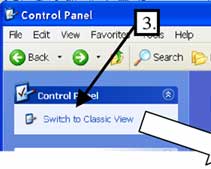
3. Look carefully at the Control Panels window. If the top left column of the window appears as shown below, left, then click on Switch to Classic View. Otherwise go on to step 4.
 |
 |
|
|
 |
|
||
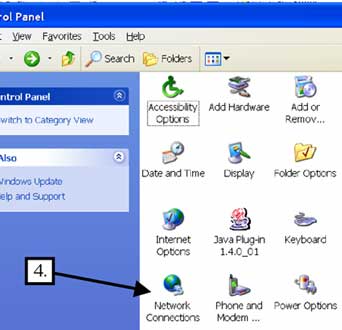
4. Double-click on Network Connections. NOTE: There are faster ways to open Network Connections. If you know of one, then go ahead and use it. This method is intended for novice users with default Windows XP Appearance settings. |
|
5. Look at the list of Network Connections set up on your
computer. Each connection has a name and a connection type.
• The connections listed under Dial-up all have a modem
for the connection type (e.g. "...V92 MDC Modem"). These connections use a standard
telephone line (not DSL) to connect to the Internet, using a specified phone
number, username and password. You
will need these three pieces of this information in order to make a dial-up
connection work properly.
• If America Online is listed and it either does not work, or you don't
want it installed, proceed to step 6. Otherwise, proceed to step
7 (step 7 defines Network Bridge, Local Area Connection
and Wireless Network Connection).
6. Internet Software Issues (America Online):
If you plan to continue using AOL, it's a good idea to
first go to a local retail store to grab the most recent AOL CD, if you don't
have one already (Target, Office Depot and many supermarkets have them in little
kiosks by the exits). You may need the CD to re-install AOL if the below steps
don't work.
If you use some other, proprietary Internet software besides AOL, these directions
should be similar.
 a) Go back to Control Panel.
b) Double-click on Add or Remove Programs (if needed,
refer to step 3).
c) Select America Online, then click the Change/Remove
button (don't worry, nothing has been removed yet).
d) The AOL uninstaller will open after a short time.
Please review the contents of the window carefully.
There may be multiple copies/versions of AOL listed. Many of us receive endless
AOL CDs, each version claiming to be "new and improved." If you install
more than one version of AOL onto your computer, however, it can cause AOL to
stop functioning. If you do have more than one version of AOL installed (and
it doesn't work), you should repeat steps b-f until each copy
you don't want is removed.
If you plan to continue using AOL, you will generally keep
only the copy that has the highest version number (e.g. keep v8.0, but remove
versions 7, 6, 5 and so on). Also, if there is a non-beta version of AOL available
(e.g. 8.0), then remove any conflicting beta versions of the same number (e.g.
8.0 beta).
e) Select the copy/version of AOL you wish to remove,
then check (or uncheck) the boxes at the bottom of the window to keep (or delete)
any AOL files, in case you may need to refer to them later.
f) Click Next, then Next
again if you're sure you wish to continue removing AOL. The uninstaller takes
awhile. Click Finish when done. You may then be prompted to
restart your computer. You may press cancel if you need to keep using the computer,
but it's recommended that you click OK to restart. Repeat the above steps as
needed to multiple copies of AOL from your computer.
 7.
Network Connections (continued from step 5)
7.
Network Connections (continued from step 5)
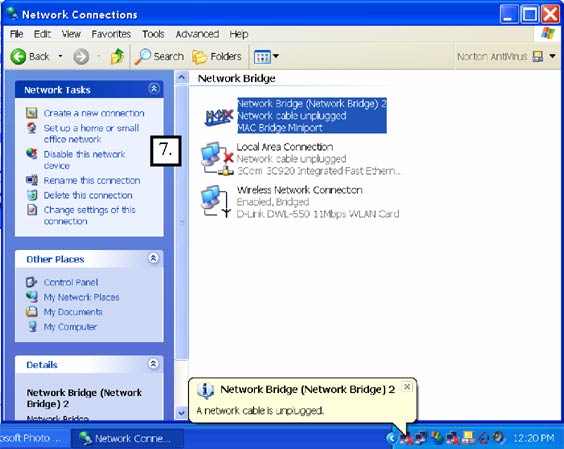
From the Control Panel, open Network Connections:
For a desktop computer, there will generally be just one type of network connection
used at any given time. Common examples of network connections are Ethernet
cable - Local Area Connection - and AirPort (A.K.A. WLAN and
802.11b or 802.11g) - Wireless Network Connection.
Disable or delete all unnecessary connections so they don't interfere with the
one you want to use. If your network changes, you can always create new connections
later. Select the connection you wish to remove or disable, then select Delete
this connection or Disable this network device
(beneath Network Tasks on the left). Disabling is preferred
to deleting if you wish to use a particular connection at some point in the
future.
A Network Bridge connects two different types of networks together (on your computer only), such as a wired Ethernet connection and a wireless WLAN connection from another building, for example. This allows a computer to use services (e.g. printers, servers) from both networks simultaneously. In most cases, however, a bridge is unnecessary. Most networks perform the bridging automatically through a router or wireless access point (e.g. WAP or AirPort Base Station), which automatically works for all the computers on the network without any additional configuration.
What if the connection I want to use is not listed?
Click on Create a new connection, listed
under Network Tasks, along the left. You will be prompted for
the type of connection you wish to create. Read all the available options and
follow the directions carefully.
Simple Network Example: Ethernet (e.g. DSL, cable modem) with WAP (wireless access point)
In this example, only one enabled connection would need to be present per computer, because the WAP performs bridging automatically between the Ethernet and Wireless networks (unless you configure it not to).
LAN or High-Speed Internet connections are used in nearly every situation where multiple computers are connected to share files and/or an Internet connection. They are commonly used in offices and homes with more than one computer. The costs associated with these networks have dropped dramatically with these networks lately, to the point where it is far less expensive to purchase the equipment to set one up than it is to pay additional monthly fees for extra phone lines or IP addresses.
 For a desktop computer that is physically connected (by Ethernet cable) to
the router or WAP, then the only connection needed would be a Local Area Connection.
It would be enabled at all times.
For a desktop computer that is physically connected (by Ethernet cable) to
the router or WAP, then the only connection needed would be a Local Area Connection.
It would be enabled at all times.
The example illustrated here is for a computer connected to the wireless network (e.g. a laptop), where there may be multiple connections listed. Only one connection would need to be enabled at a time. A laptop would generally use the Wireless Network Connection, but you could enable the Local Area Connection when plugged into an Ethernet cable (for faster file transfers), or create a Dial-up connection when plugged into a phone line (away from the home/office).
Once these steps have been followed, your computer should be less confused, and will know what network connection (interface) to use. Assuming that the network (DSL modem, router, WAP) is functioning properly, everything should work just fine. Most networks use something called DHCP these days, which is a way to automatically configure connected devices (computers, network printers, etc.). All those devices need to be told is which interface to use, and DHCP does the rest.
If this did not help you to solve your problems, then you may want to consult the owner's manual for you router or wireless access point, or contact your Internet Service Provider for more help. For a very thorough examination of your home/office network, contact me, and we can schedule an appointment to get everything sorted out.
| made | ||
| with | ||
| HTML | ||
